

If you’re reading this, chances are you know the daily frustrations of working within iManage. You’ve spent countless hours searching for that critical email thread that never made it into the system. You’ve watched important client communications disappear into email silos while your documents live in a separate world. You’ve wondered why, in 2025, you’re still manually filing emails and struggling to connect the dots between communications and case files.
You’re not alone. And there’s a better way.
The iManage Reality Check
As an iManage user, you live with these challenges every day:
- The Great Email Divide: Client communications live in Outlook while case documents sit in iManage—never the two shall meet
- Search Futility: Finding that crucial email exchange from six months ago requires digging through multiple systems
- Manual Drudgery: Constantly dragging and dropping emails into iManage folders (when you remember to)
- Missing Context: Documents exist without the email conversations that created them
- AI Desert: While the world moves toward intelligent automation, you’re stuck with 20-year-old search technology
Sound familiar?
What If Your Organization’s Email Actually Talked to Your Documents?
Imagine opening a case file and seeing not just the documents, but the complete story—every email, every attachment, every decision point that led to the current state. Picture asking your system “Show me all communications about the Johnson merger where risk was mentioned” and getting intelligent results in seconds, not hours.
This isn’t science fiction. It’s what happens when you integrate mxHERO Mail2Cloud Advanced with Box’ Enterprise Advanced and Amicus, your AI-powered legal agent.
How We Transform Your iManage Experience
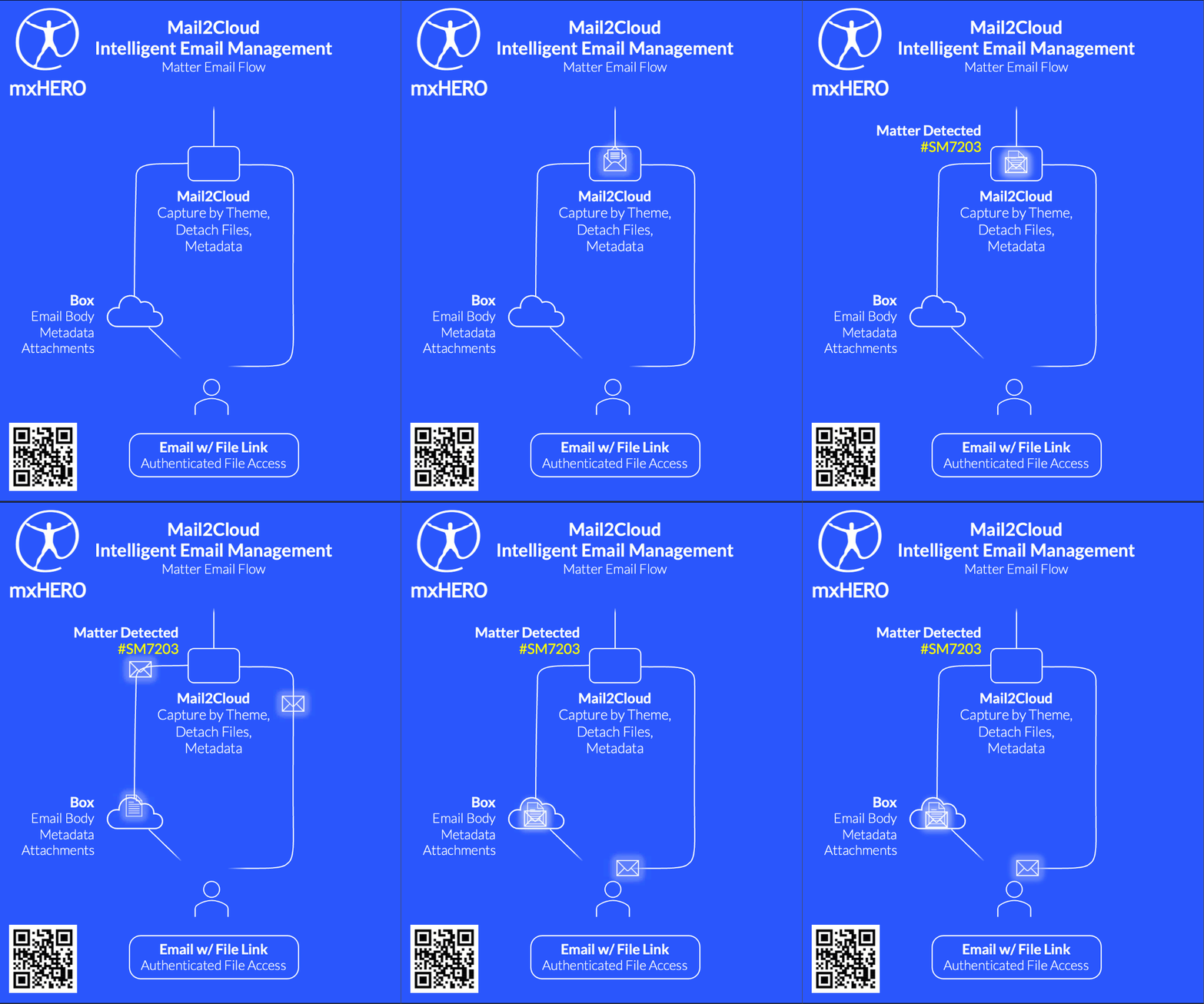
Step 1: Automatic Email Intelligence mxHERO’s Mail2Cloud technology captures every email you send or receive—automatically. No more remembering to file emails. No more lost context. Every communication becomes part of your searchable knowledge base, organized by matter, client, or any criteria you choose.
Step 2: AI That Actually Understands Legal Work Box Enterprise Advanced doesn’t just store your content – it understands it. Through our specialized legal AI agent, Amicus, the system becomes your trusted ally in legal practice.
Amicus can:
- Automatically extract key dates, obligations, and deadlines from email threads
- Draft and analyze motions, service agreements, and asset lists tailored to your case needs
- Connect related documents across different matters
- Surface relevant precedents from your firm’s historical communications
- Generate matter summaries from years of email history
- Streamline document management while ensuring compliance with your firm’s standards
Amicus serves as your intelligent legal companion, automating routine tasks so you can focus on strategic decision-making and client advocacy.
Step 3: Your Institutional Memory, Amplified by Amicus – Remember that partner who retired and took 30 years of client relationship knowledge with them? With Amicus, your AI-powered legal agent, that institutional knowledge lives on and becomes actionable. Amicus learns from decades of your firm’s communications, becoming smarter about your clients, your processes, and your industry.
Beyond knowledge retention, Amicus actively enhances your practice by:
- Managing and organizing agreements, motions, and asset lists to align with case objectives
- Providing quick access to summarized insights from complex case histories
- Ensuring all documents meet compliance standards and firm protocols
- Reducing time spent on administrative tasks so you can focus on what matters most—your clients
Workflow in Action: Complex Litigation Discovery Scenario
Here’s how Amicus transforms document discovery for legal professionals:
| Step | Description |
|---|---|
| 1. Email Harvesting | AI collects messages from case team tagged “Johnson v. State,” “Contract Dispute,” “Expert Witness,” etc. |
| 2. Thematic Summarization | Amicus clusters threads by liability issues, settlement discussions, expert testimony, procedural motions, etc. |
| 3. Embedded Knowledge | Case summaries and communication chains are encoded into a vector database, queryable via natural language. |
| 4. Discovery Support | Legal team asks Amicus, “What was opposing counsel’s position on damages in 2023?” and gets real-time analysis with supporting emails, precedents, and strategic insights. |
| 5. *Execution | Add Amicus to the team. The agent executes tasks on your behalf leveraging model context protocol (MCP). Integrates into your existing AI tools and workflows. |
Real Results from Real Law Firms
“mxHERO’s technology integrated seamlessly with our law firm’s Box Intelligent Content Cloud platform and Microsoft Outlook. This immediately enhanced our document management experience by streamlining our retention and organization processes across over 700 client files. In addition, mxHERO’s tech support and customer service teams were very responsive and helpful.” –Mary Fox and Matt Lincicum, Partners at Fortem IP
“mxHERO is such a boon!” – Vikram Jadhav – Digital Chief – Los Angeles City Employee Retirement System (LACERS)
“mxHERO’s Mail2Cloud technology was a key factor in our cloud storage (Box) decision and strategy!” Erich Lemke – SVP CIO, Crescent Electric Supply Company.
Making the Transition
We know change is hard, especially in legal environments where risk tolerance is low. That’s why Bubo Defense specializes in seamless transitions:
- Parallel Operation: Keep iManage running while we prove the value
- Reduced Learning Curve: Access everything through familiar interfaces
- Complete Security: Bank-level encryption and compliance monitoring
- Gradual Migration: Move at your pace, matter by matter if needed
- Human Performance: Shift operations from routine, repetative tasks toward higher value activities like strategic analysis, client counseling, and creative problem-solving.
Your Next Step
You didn’t become a lawyer to spend your days filing emails and searching through disconnected systems. Your expertise should focus on legal strategy, not information archaeology.
The firms that thrive in the next decade will be those that harness their institutional knowledge as a competitive advantage. The question isn’t whether you’ll eventually move beyond traditional DMS limitations—it’s whether you’ll lead the transformation or follow it.
Ready to see what your legal practice could look like with Amicus and true document intelligence? Contact Bubo Defense for a personalized demonstration of how mxHERO, Box Enterprise Advanced, and Amicus can transform your daily workflow. Email us at contact@bubodefense.com or schedule a consultation at your convenience.
Because your expertise deserves better than iManage.
Designed for Federal and Commercial Use
Compliant With:
- SOC-II
- FedRAMP Moderate/High (w/ secure cloud)
- FISMA Records Retention
- Zero Trust Architecture (ZTA)
Try it out yourself
Step-by-step guidance included here.
Step 1: Grab your MCP client
First, you’ll need an MCP chat client. Here is one of many lists of clients (300+ MCP Clients: AI-powered apps for MCP). For this demo, the type you’ll need is the “Chat” variety; think ChatGPT’s web app. Here are a few options (no recommendation or preference):
Example MCP clients
- Claude for Desktop (only supports Anthropic LLMs — used in video above)
- LibreChat (open source, MCP configuration) — supports many LLMs
- ChatWise (paid client, $29 one time) — supports many LLMs
Step 2: Install MCPs
Now, let’s install our first MCP — mxMCP. mxMCP is the tool your LLM will use when you request information from your organization’s emails. Developed by mxHERO, mxMCP is a high-performance connector custom-designed for email content, enabling your AI model to work with massive email repositories (hundreds of thousands+ messages & attachments) and securely access emails across multiple email accounts, whether archival or emails sent and received in realtime. mxMCP connects to mxHERO Mail2Cloud Advanced to access email data. For this demo, you can use a preconfigured demo account.
Installation Options
There are two types of MCP installation: local and remote. In a local installation, the MCP server is run locally on your computer. Conversely, a remote installation targets an MCP server on the Internet. Because no software needs to be installed, remote MCPs are simpler to integrate. However, as of this writing, the specification for remote MCPs is still relatively new, and not all MCPs offer a remote alternative.
mxMCP offers both local and remote options. If you are interested in using the local mxMCP, you can find installation instructions here:
- https://github.com/mxaiorg/mxmcp (Go version with prebuilt installers for MacOS)
- https://github.com/mxaiorg/mxmcp-py (Python version)
To use the remote mxMCP server, no software needs to be installed, only configured in your AI client. Continue installing the other MCPs in this guide, namely, mxDemo and the Box MCP, and then we’ll cover the mxMCP configuration.
Install mxDemo
mxDemo adds mock tools to help us tell the above story. It provides several tools:
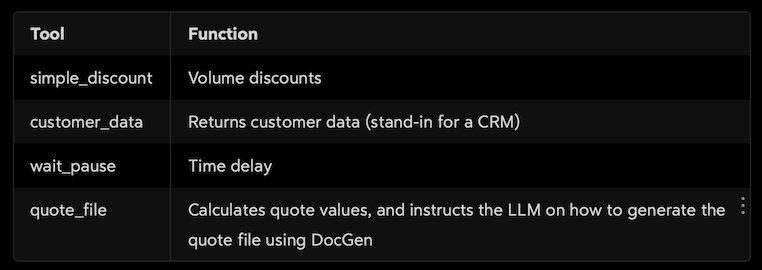
To install mxDemo access the repository and follow the readme instructions:
- https://github.com/mxaiorg/mxdemo-mcp (Go version with prebuilt installers for MacOS)
Several tools in mxDemo showcase MCP development tricks and tips:
wait_pause
wait_pause is needed to provide a timed delay for tools that require more time to execute. In our case, Box DocGen (called to fill out an invoice template) is a process that takes a little time to complete. Simply instructing the LLM to wait X seconds often does not work. The LLM needs a timer function to wait a set amount of time. This tool provides that timer.
quote_file
Take a look at the code for quote_file. It shows an interesting technique when building MCPs. Instead of calling external resources, it provides a set of instructions informing the LLM how to orchestrate sets of tools (even from other MCPs). Essentially, it is a tool that provides a prompt. It also takes arguments, making the prompt logic programmable and dynamic — very interesting.
Install Box MCP
Install the Box MCP following the instructions in the git repository readme box-community/mcp-server-box: An MCP server capable of interacting with the Box API
Note that as of this writing, Box offers a remote MCP option. More about this can be found https://developer.box.com/guides/box-mcp/remote/.
Install an Emailer MCP
To send email, you will need to install an Emailer MCP. You can find emailer MCPs in any MCP listing, like, https://www.pulsemcp.com/.
Step 3: Configure your MCP Client
Each MCP needs to be added to the configuration of your MCP client. Here, we’ll show Claude for Desktop (https://claude.ai/download). If you are not using Claude for Desktop, consult the instructions of your particular client.
Adding mxMCP remote
To use mxMCP, you will need a Mail2Cloud Advanced account. The instructions here provide a demo account preloaded with demo email content. To learn more about using the mxHERO Demo account and its preloaded data, see this article.
The following video shows how to install a remote client in Claude. For this step, be sure to use Claude in a browser rather than the desktop client, or at least have an authenticated Claude session in your default browser. This facilitates the web based authentication process and also installs on the desktop client.
https://cdn.embedly.com/widgets/media.html?src=https%3A%2F%2Fplayer.vimeo.com%2Fvideo%2F1094403224%3Fapp_id%3D122963&dntp=1&display_name=Vimeo&url=https%3A%2F%2Fvimeo.com%2F1094403224&image=https%3A%2F%2Fi.vimeocdn.com%2Fvideo%2F2027979579-d3ddb22f882e5252359d954344fac34fa4f55d7edf9a6c3d5b5d594add46273a-d_1280%3Fregion%3Dus&type=text%2Fhtml&schema=vimeoConfiguring Claude (web app) with mxMCP (remote MCP)
There are two URL paths for remote mxMCP configuration. Depending on your MCP client, you may need to use the legacy SSE url:
- https://lab4-api.mxhero.com/mcp/connect (streamable HTTP)
- https://lab4-api.mxhero.com/mcp/sse (Legacy SSE)
Alternatively — adding mxMCP local (stdio)
If your client does not support remote MCPs, local (stdio) MCPs of mxMCP are available here:
- https://github.com/mxaiorg/mxmcp (Go version with prebuilt binaries)
- https://github.com/mxaiorg/mxmcp-py (Python version)
Instructions for installing and configuring the local MCPs can be found in their respective readme files.
Configuring mxDemo (local)
After installing mxDemo, include the configuration JSON in Claude’s configuration file.
{
   "mxhero-demo-mcp-server": {
     "args": [],
       "command": "/usr/local/bin/mxdemo"
   }
}
Remember to put your full path to the compiled mxDemo (in the example above this is “/usr/local/bin/mxdemo”). More setup details for mxmcp at https://github.com/mxaiorg/mxdemo-mcp.
Configure Box MCP
Configure the Box MCP following the instructions in the git repository readme (or here for the remote version).
Configure the Emailer MCP
If you plan on emailing out of your AI solution, be sure to configure your emailer according to its instructions.
Final Configuration
With each of the above installed, your claude_desktop_config.json file should look something like the one below. Here, we have Box and mxDemo installed as local servers.
{
  "mcpServers": {
    "box": {
      "args": [
        "--directory",
        "/your/path/to/mcp-server-box",
        "run",
        "src/mcp_server_box.py"
      ],
      "command": "uv"
    },
    "mxhero-demo-mcp-server": {
      "args": [],
      "command": "/your/path/to/bin/mxdemo"
    }
  }
}
Where is mxMCP? That’s a good question. It isn’t configured here because it is a remote MCP, which in Claude is configured in a different place — under Integrations (see video above). That said, if you opted for the local version of mxMCP, you need an entry for that here. Consult its readme for details.
Note that the installation and use of the local MCPs only work from Claude for Desktop (or other desktop MCP clients), not the web app.
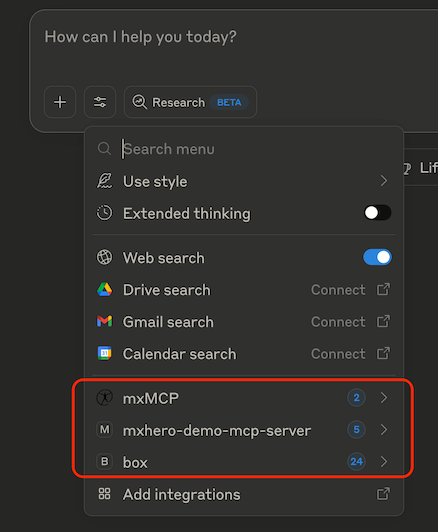
If all MCPs are installed, Claude for Desktop should look a little something like the picture below…
Testing
Now that you have everything installed, you should be able to replicate the above video. For further test ideas specific to mxMCP, see this page.
Closing
The ability to extend AI with tools via a standardized interface (MCP) is truly foundational to AI’s transformation of the future of work. In this article, we took a handful of tools and demonstrated a workflow that might normally have taken days to perform and resolved it in minutes.
Two aspects of MCPs are particularly impressive: 1) how intelligently models orchestrate the tools they have available to them and 2) how truly complex workflows can be resolved with humanity’s most natural UI … a conversation.
Have fun building incredible solutions! Let us know if we can help.
Delivering the future of Human & AI Collaboration. Now.

*If you found this article interesting, please let us know! We thrive on collaborating with innovative individuals, and our consortium is ready to assist with the technologies and human resources involved (contact@bubodefense.com).