

Hurricane Leo & Operational Continuity at FEMA.
Disasters don’t wait for onboarding. Every lost email thread, every reassigned role, and every severed communication chain weakens our national resilience.
With AI-powered email intelligence, FEMA – and any federal agency for that matter – can ensure that the next generation of responders never has to guess what worked last time.
IMPORTANT NOTE: This story is inspired by recent events, but is totally fabricated to test the impacts of human signals and agent assistance using synthetic data sources.
Although the story is simulated, the technology is real and can be applied to any organization experiencing constriction or change.
The Challenge: Institutional Memory in Crisis
After workforce reductions across federal agencies, institutional memory is rapidly eroding. In many cases, email records are the only detailed log of:
- How critical workflows were executed
- Who made decisions and why
- What historical precedents exist for emergency protocols
This knowledge loss is especially dire in emergency response agencies like FEMA, where agility, coordination, and accurate memory can save lives.
Case Study: Hurricane Leo Emergency Response
July 12, 2023 — Hurricane Leo makes landfall near Savannah, Georgia. The Category 4 storm overwhelms infrastructure and prompts rapid federal response.
Day One: Power Outage at Savannah General Hospital
- The hospital loses power and its backup generator floods.
- Only 8–10 hours of battery backup remain for critical life support systems.
- A mass casualty risk is identified. Immediate action is needed.
FEMA’s Operational Hurdles
- Generators are located 260 miles away in Marietta, GA.
- Ground transport is expected to take 12–16 hours due to storm damage.
- A C-17 cargo plane from the 167th Airlift Wing is requisitioned to deliver generators via airlift.
- Decision-making and coordination between FEMA, the Department of Defense, and state-level agencies must occur within tight windows—every minute counts.
The Solution: AI-Powered Email Intelligence
If this same emergency were to occur post-layoff, who remembers how FEMA managed it last time?
With institutional memory gaps, agencies need a resilient, AI-powered bridge:
This Solution Provides:
- Reconstruction of Critical Communications Extracts full operational narratives from inboxes of past responders—emails tagged Hurricane Leo, GA-HURREX24, or Emergency Lift Ops.
- Context-Aware AI Agents Act as institutional memory surrogates—briefing new personnel through natural language queries: “Who approved the DoD airlift last time?” “What was FEMA’s timeline during Leo’s blackout?”
- Secure, Policy-Compliant Delivery FedRAMP- and FISMA-compatible infrastructure. Supports Zero Trust Architecture and redacted access by role or clearance.
Workflow in Action

Emergency Knowledge Recovery Scenario:
| Step | Description |
|---|---|
| 1. Email Harvesting | AI collects messages from legacy FEMA personnel tagged “Leo,” “GA Emergency,” “DoD Lift,” etc. |
| 2. Thematic Summarization | Threads are clustered by logistics, medical response, military coordination, etc. |
| 3. Embedded Knowledge | Summaries and contact chains are encoded into a vector database, queryable via API and/or MCP. |
| 4. Operational Support | New FEMA analyst asks, “How was Savannah General’s blackout resolved?” and gets a real-time narrative with contacts, timelines, and outcomes. |
Designed for Federal Use
Compliant With:
- FedRAMP Moderate/High (w/ secure cloud)
- FISMA Records Retention
- Zero Trust Architecture (ZTA)
Try it yourself
Step-by-step guidance included here.
Step 1: Grab your MCP client
First, you’ll need an MCP chat client. Here is one of many lists of clients (300+ MCP Clients: AI-powered apps for MCP). For this demo, the type you’ll need is the “Chat” variety; think ChatGPT’s web app. Here are a few options (no recommendation or preference):
Example MCP clients
- Claude for Desktop (only supports Anthropic LLMs — used in video above)
- LibreChat (open source, MCP configuration) — supports many LLMs
- ChatWise (paid client, $29 one time) — supports many LLMs
Step 2: Install MCPs
Now, let’s install our first MCP — mxMCP. mxMCP is the tool your LLM will use when you request information from your organization’s emails. Developed by mxHERO, mxMCP is a high-performance connector custom-designed for email content, enabling your AI model to work with massive email repositories (hundreds of thousands+ messages & attachments) and securely access emails across multiple email accounts, whether archival or emails sent and received in realtime. mxMCP connects to mxHERO Mail2Cloud Advanced to access email data. For this demo, you can use a preconfigured demo account.
Installation Options
There are two types of MCP installation: local and remote. In a local installation, the MCP server is run locally on your computer. Conversely, a remote installation targets an MCP server on the Internet. Because no software needs to be installed, remote MCPs are simpler to integrate. However, as of this writing, the specification for remote MCPs is still relatively new, and not all MCPs offer a remote alternative.
mxMCP offers both local and remote options. If you are interested in using the local mxMCP, you can find installation instructions here:
- https://github.com/mxaiorg/mxmcp (Go version with prebuilt installers for MacOS)
- https://github.com/mxaiorg/mxmcp-py (Python version)
To use the remote mxMCP server, no software needs to be installed, only configured in your AI client. Continue installing the other MCPs in this guide, namely, mxDemo and the Box MCP, and then we’ll cover the mxMCP configuration.
Install mxDemo
mxDemo adds mock tools to help us tell the above story. It provides several tools:
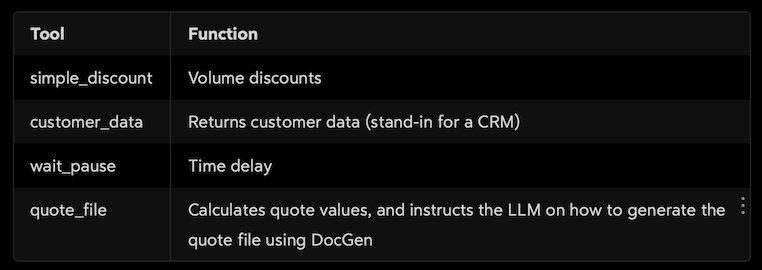
To install mxDemo access the repository and follow the readme instructions:
- https://github.com/mxaiorg/mxdemo-mcp (Go version with prebuilt installers for MacOS)
Several tools in mxDemo showcase MCP development tricks and tips:
wait_pause
wait_pause is needed to provide a timed delay for tools that require more time to execute. In our case, Box DocGen (called to fill out an invoice template) is a process that takes a little time to complete. Simply instructing the LLM to wait X seconds often does not work. The LLM needs a timer function to wait a set amount of time. This tool provides that timer.
quote_file
Take a look at the code for quote_file. It shows an interesting technique when building MCPs. Instead of calling external resources, it provides a set of instructions informing the LLM how to orchestrate sets of tools (even from other MCPs). Essentially, it is a tool that provides a prompt. It also takes arguments, making the prompt logic programmable and dynamic — very interesting.
Install Box MCP
Install the Box MCP following the instructions in the git repository readme box-community/mcp-server-box: An MCP server capable of interacting with the Box API
Note that as of this writing, Box offers a remote MCP option. More about this can be found https://developer.box.com/guides/box-mcp/remote/.
Install an Emailer MCP
To send email, you will need to install an Emailer MCP. You can find emailer MCPs in any MCP listing, like, https://www.pulsemcp.com/.
Step 3: Configure your MCP Client
Each MCP needs to be added to the configuration of your MCP client. Here, we’ll show Claude for Desktop (https://claude.ai/download). If you are not using Claude for Desktop, consult the instructions of your particular client.
Adding mxMCP remote
To use mxMCP, you will need a Mail2Cloud Advanced account. The instructions here provide a demo account preloaded with demo email content. To learn more about using the mxHERO Demo account and its preloaded data, see this article.
The following video shows how to install a remote client in Claude. For this step, be sure to use Claude in a browser rather than the desktop client, or at least have an authenticated Claude session in your default browser. This facilitates the web based authentication process and also installs on the desktop client.
https://cdn.embedly.com/widgets/media.html?src=https%3A%2F%2Fplayer.vimeo.com%2Fvideo%2F1094403224%3Fapp_id%3D122963&dntp=1&display_name=Vimeo&url=https%3A%2F%2Fvimeo.com%2F1094403224&image=https%3A%2F%2Fi.vimeocdn.com%2Fvideo%2F2027979579-d3ddb22f882e5252359d954344fac34fa4f55d7edf9a6c3d5b5d594add46273a-d_1280%3Fregion%3Dus&type=text%2Fhtml&schema=vimeoConfiguring Claude (web app) with mxMCP (remote MCP)
There are two URL paths for remote mxMCP configuration. Depending on your MCP client, you may need to use the legacy SSE url:
- https://lab4-api.mxhero.com/mcp/connect (streamable HTTP)
- https://lab4-api.mxhero.com/mcp/sse (Legacy SSE)
Alternatively — adding mxMCP local (stdio)
If your client does not support remote MCPs, local (stdio) MCPs of mxMCP are available here:
- https://github.com/mxaiorg/mxmcp (Go version with prebuilt binaries)
- https://github.com/mxaiorg/mxmcp-py (Python version)
Instructions for installing and configuring the local MCPs can be found in their respective readme files.
Configuring mxDemo (local)
After installing mxDemo, include the configuration JSON in Claude’s configuration file.
{
   "mxhero-demo-mcp-server": {
     "args": [],
       "command": "/usr/local/bin/mxdemo"
   }
}
Remember to put your full path to the compiled mxDemo (in the example above this is “/usr/local/bin/mxdemo”). More setup details for mxmcp at https://github.com/mxaiorg/mxdemo-mcp.
Configure Box MCP
Configure the Box MCP following the instructions in the git repository readme (or here for the remote version).
Configure the Emailer MCP
If you plan on emailing out of your AI solution, be sure to configure your emailer according to its instructions.
Final Configuration
With each of the above installed, your claude_desktop_config.json file should look something like the one below. Here, we have Box and mxDemo installed as local servers.
{
  "mcpServers": {
    "box": {
      "args": [
        "--directory",
        "/your/path/to/mcp-server-box",
        "run",
        "src/mcp_server_box.py"
      ],
      "command": "uv"
    },
    "mxhero-demo-mcp-server": {
      "args": [],
      "command": "/your/path/to/bin/mxdemo"
    }
  }
}
Where is mxMCP? That’s a good question. It isn’t configured here because it is a remote MCP, which in Claude is configured in a different place — under Integrations (see video above). That said, if you opted for the local version of mxMCP, you need an entry for that here. Consult its readme for details.
Note that the installation and use of the local MCPs only work from Claude for Desktop (or other desktop MCP clients), not the web app.
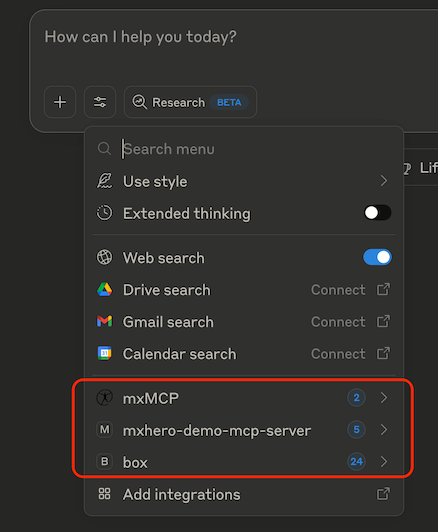
If all MCPs are installed, Claude for Desktop should look a little something like the picture below…
Testing
Now that you have everything installed, you should be able to replicate the above video. For further test ideas specific to mxMCP, see this page.
Closing
The ability to extend AI with tools via a standardized interface (MCP) is truly foundational to AI’s transformation of the future of work. In this article, we took a handful of tools and demonstrated a workflow that might normally have taken days to perform and resolved it in minutes.
Two aspects of MCPs are particularly impressive: 1) how intelligently models orchestrate the tools they have available to them and 2) how truly complex workflows can be resolved with humanity’s most natural UI … a conversation.
Have fun building incredible solutions! Let us know if we can help.
Let’s get started

*If you found this article interesting, please let us know! We thrive on collaborating with innovative individuals, and our consortium is ready to assist with the technologies and human resources involved (contact@bubodefense.com).